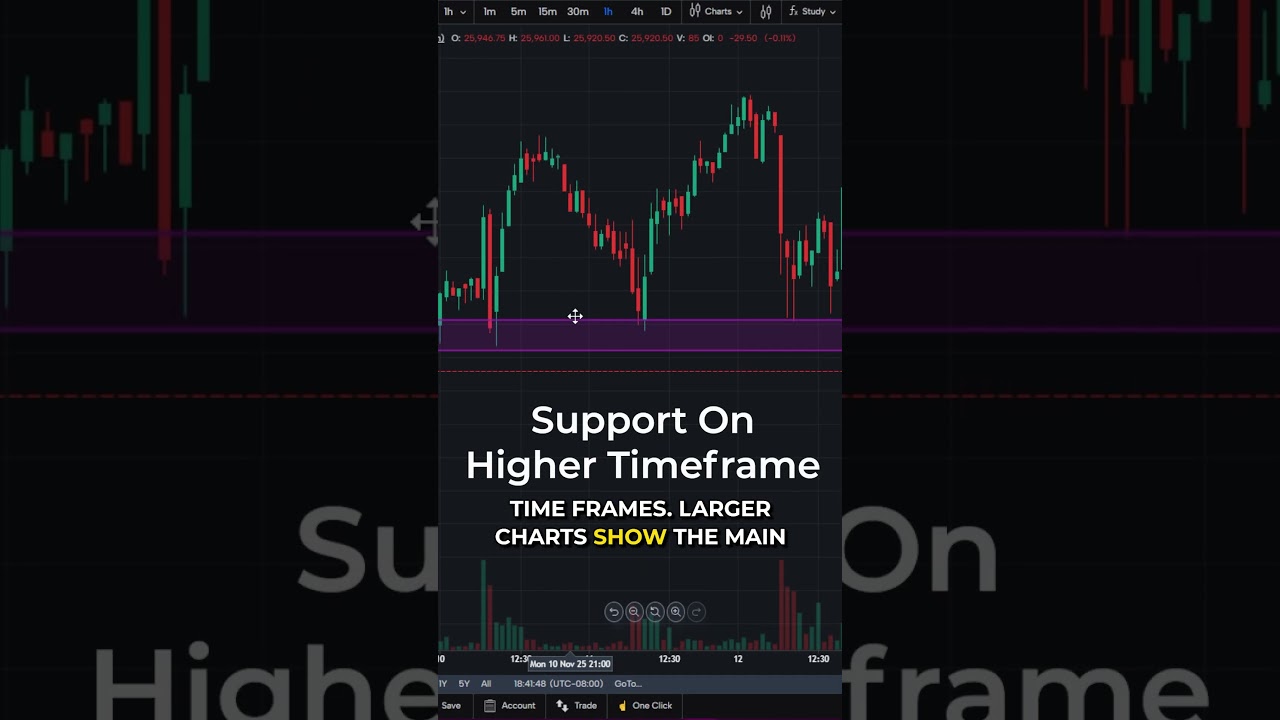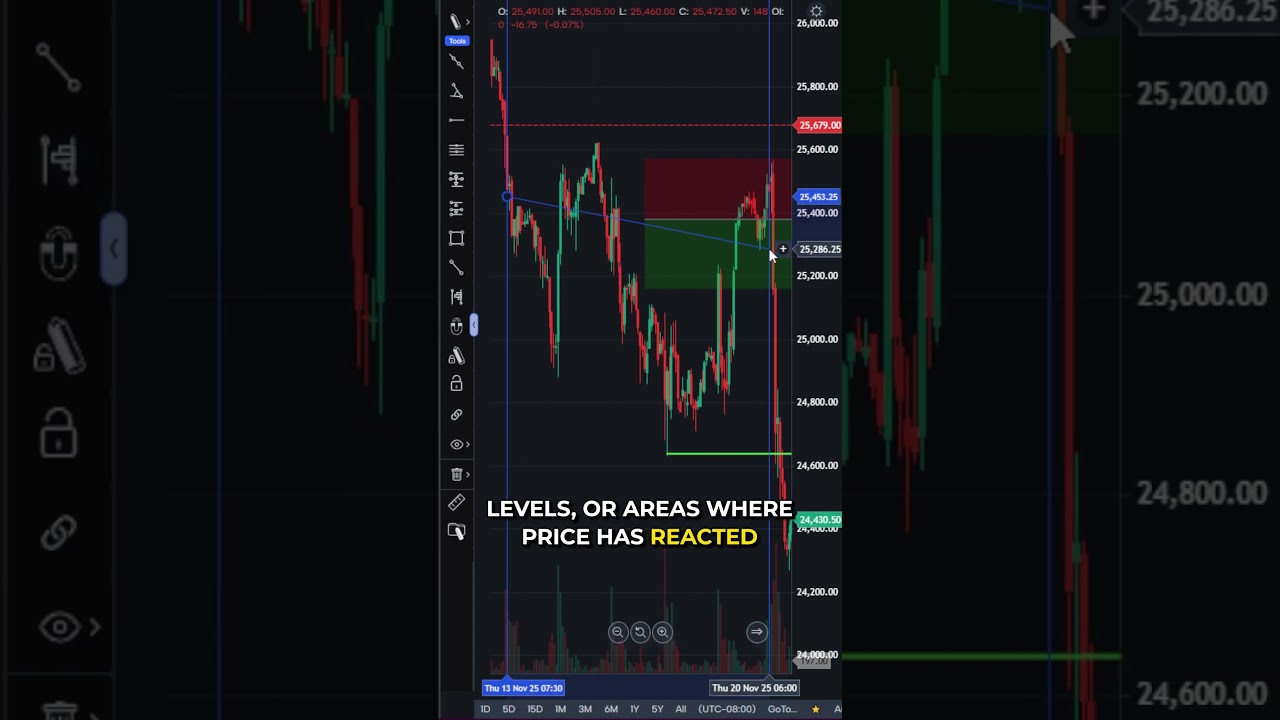
Need to see how much time is left before the next candle forms on your TradingView Charts? This video shows how to add a countdown timer to your TradingView chart so you can track time-based price updates more clearly.
You’ll learn how to:
– Open the Chart Settings
– Navigate to the Scales tab
– Enable Countdown to Bar Close
Once enabled, the timer appears next to the price axis—counting down to each new bar. A simple way to monitor timing and market rhythm more closely.
👉 Subscribe for more bite-sized trading insights and platform tips. Looking for a Futures Broker? http://www.optimusfutures.com
There is a substantial risk of loss in futures trading. Past performance is not indicative of future results. When considering technical analysis, please remember educational charts are presented with the benefit of hindsight. Market conditions are always evolving, and technical trading theories and approaches may not always work as intended. The placement of contingent orders by you or broker, or trading advisor, such as a “stop-loss” or “stop-limit” order, will not necessarily limit your losses to the intended amounts, since market conditions may make it impossible to execute such orders. The high degree of leverage that is often obtainable in commodity interest trading can work against you as well as for you. The use of leverage can lead to large losses as well as gains. Optimus Futures, LLC is not affiliated with nor does it endorse any trading system, methodologies, newsletter or other similar service. We urge you to conduct your own due diligence.
TradingView #CandleTimer #ChartTools #FuturesTrading #MarketTiming